
Content:
1. Overview
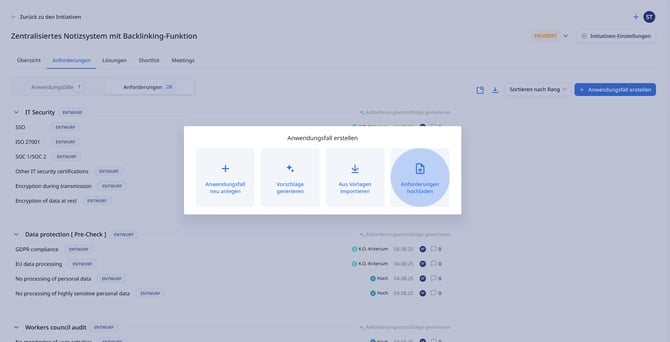
In Stackgini, you can conveniently import existing requirements catalogs into an initiative via CSV file. This saves time, reduces manual entry, and allows you to transfer structured use cases and associated requirements from CSV files.
2. When is this article relevant?
Use this article if you already have a documented requirements catalog in a CSV file and want to import it exactly as it is.
3. Step-by-step instructions
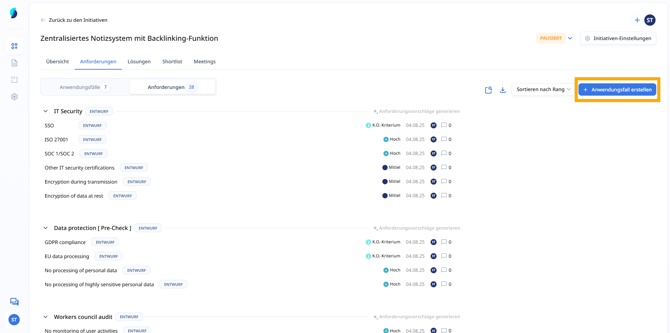
a. Open the initiative and the "Requirements" tab
Navigate to your initiative and select the "Requirements" tab in the upper menu. Then click on the "Create use case" button in the top right.
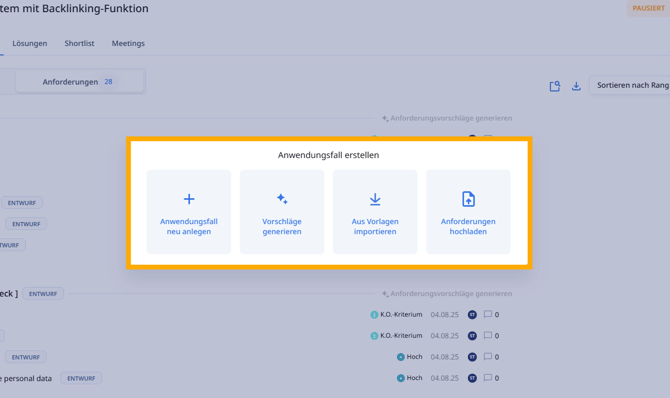
b. Select the "Upload csv" option
In the dialog that then appears, select the fourth option: "Upload csv".
c. Upload CSV file
Click on "Select CSV file" to upload your prepared file.
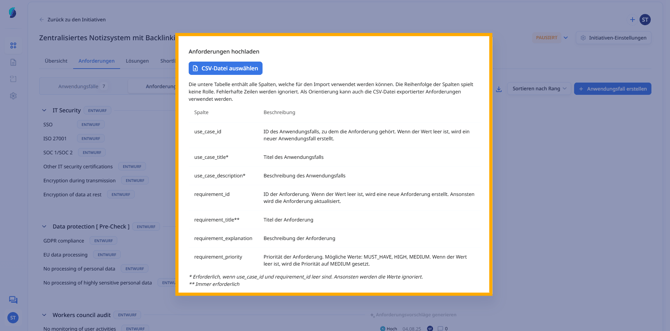
The following fields can (or must*) be included in the CSV file:
| Column | Description |
use_case_id |
Use Case ID (if available, otherwise a new one is created) |
use_case_title* |
Use Case Title |
use_case_description* |
Use Case Description |
requirement_id |
Requirement ID (if available, otherwise a new one is created) |
requirement_title** |
Requirement Title (always required) |
requirement_explanation |
Requirement Description |
requirement_priority |
Priority: MUST, SHOULD, COULD (Standard: COULD) |
* Required if use_case_id and requirement_id are empty. Otherwise, the values are ignored.
** Always required.
4. Tips & Best Practices
- Export existing requirements from other Stackgini initiatives as a CSV to adopt the structure.
- Use descriptive titles for use cases, e.g., "Data Protection (Pre-Check)" or "IT Security - Encryption."
- requirement_title must not be longer than 255 characters and avoid empty mandatory fields to prevent errors during import.