
Content:
- Why are there different roles and permissions?
- Important terms
- Recommended role and permissions settings in Stackgini
- Processes and governance for roles & permissions
This article explains Stackgini's role concept and the effective assignment of permissions for secure and efficient use of the application.
1. Why are there different roles and permissions?
Roles and permissions ensure security and efficiency. The ‘least privilege’ principle (as few rights as necessary) minimises errors and protect against unintentional changes. It simplifies operation, as users only see functions that are relevant to them.
2. Important terms
- Role (admin, manager, user): Roles bundle permissions. Users with an assigned role receive its permissions.
- Permissions: Allows a role to use a feature.
- Feature: A functionality in Stackgini (e.g. ‘Create initiatives’, ‘Contact provider’).
3. Recommended role and permissions settings in Stackgini
Stackgini offers three customisable default roles: Admin, Manager and User. In addition to the selectable permissions, the admin also has access to the ‘organisation settings’ (e.g. user management, roles & permissions, integrations, API keys).
The recommended default settings for the feature permissions of the individual roles serve as a recommended start and look as follows:
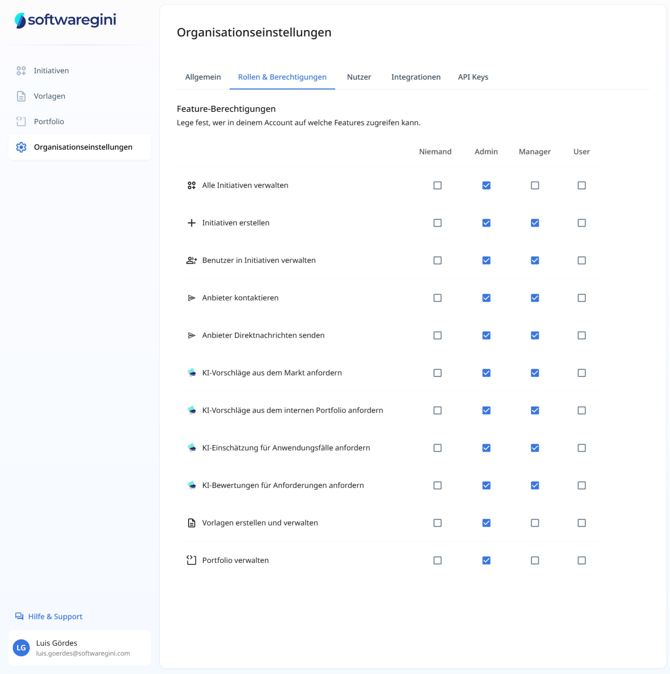
Permissions can be adjusted flexibly. The table only shows a recommended configuration.
- Admin:
Has access to the "organization settings" and all features. - Manager:
Extended rights to control initiatives and provider interaction. No access to organisational settings, portfolio or central template management. Can by default:- Create and manage initiatives
- Manage users in initiatives
- Contact providers & send direct messages
- Request AI suggestions (market & internal), AI assessments & AI evaluations
- User:
In the recommended default setting, primarily intended for viewing information and adding requests.
Please note that the above permissions of the individual roles can be different in your specific tenant depending what your admin has defined.
4. Processes and governance for roles & permissions
To ensure that your role and permission concept in Stackgini is permanently effective and remains up-to-date after the one-off setup, please note the following points on processes and governance:
- Responsibility: Designate at least one admin who is responsible for maintaining the role and permissions and its correct application.
- Regular review:
- Check roles and permissions regularly (e.g. every six months or annually), especially after software updates with new features.
- Adjust permissions or role if a user's responsibilities change (e.g. due to a change of department or promotion).
- Change management: Implement a simple, internal process for users to request permissions and for admins to review and implement requests.