
Content:
The ‘Solutions’ tab gives you an overview of your software selection. The selection process is divided into six clearly defined phases. This means you can always see where you stand and what's next.
1. Options
Here you can see all the solutions that have been added to your initiative - from the internal IT portfolio or the market.
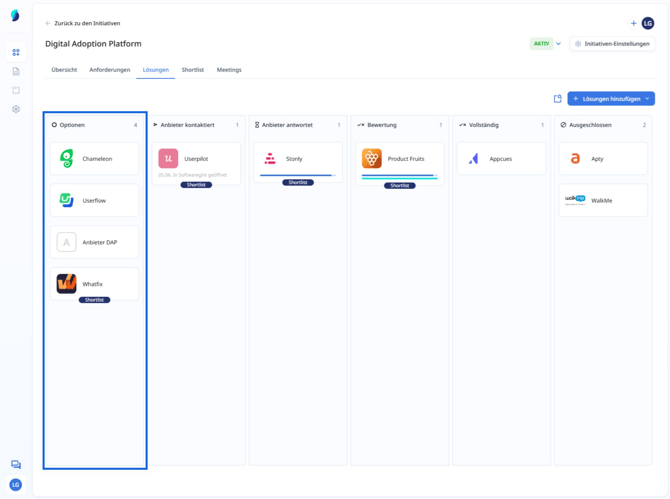
Solutions can only be added to the shortlist if they have previously been added to the initiative here.
2. Provider contacted
You have contacted one or more providers within the solution cards via ‘Provider contact’ ‘Contact’. The providers will be notified to process your requests.
Moving solution cards to other columns does not automatically result in notifications being sent to the solution providers.
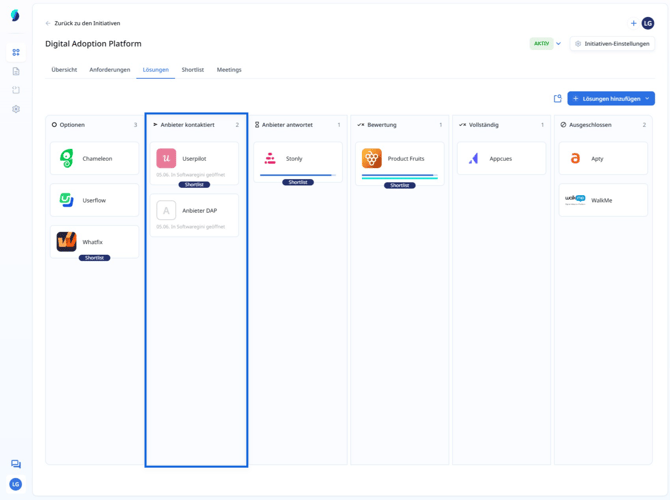
Further information can be found here: How do I contact providers?
3. Provider is answering
The provider has accepted your enquiry and is starting to respond to your requirements. You can see the progress directly in the solution overview.
.jpeg?width=670&height=500&name=June%205%2c%202025%2011_39_22%20AM%20-%20Screenshot%20(1).jpeg)
The blue bar in the solution cards describes how many of the released questions the provider has already answered and sent.
4. Evaluation
All the answers are available - now you can evaluate the solution. The basis for this can be demos, references or your overall impression of the solution in addition to the pure answers from the providers. Queries and additional requirements are still possible.
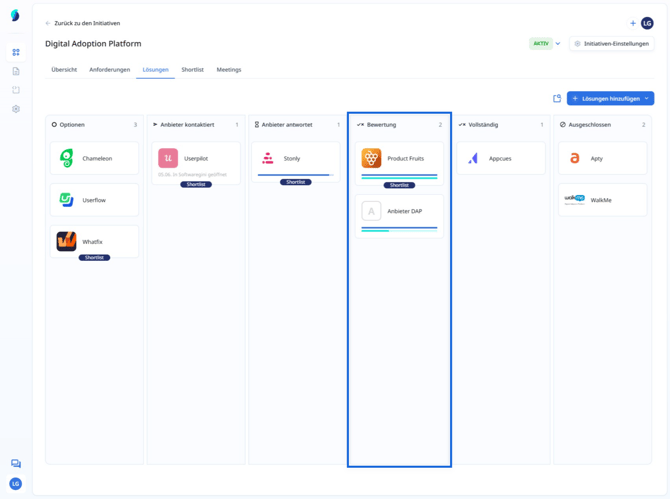
The turquoise bar in the solution cards describes how many of the requirements were given an internal rating.
5. Completed
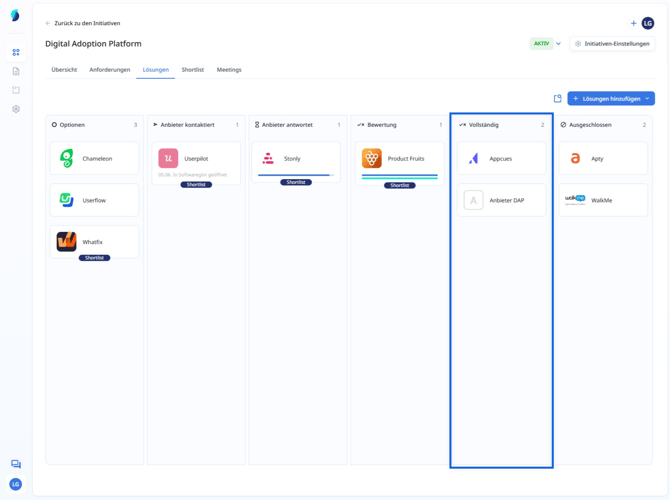
The internal evaluation has been completed, all points have been clarified. The decision in favour of or against software can be made now that all the information has been collected. Move the solution to this phase.
6. Disqualified
If a solution does not meet your requirements, move it to this phase.
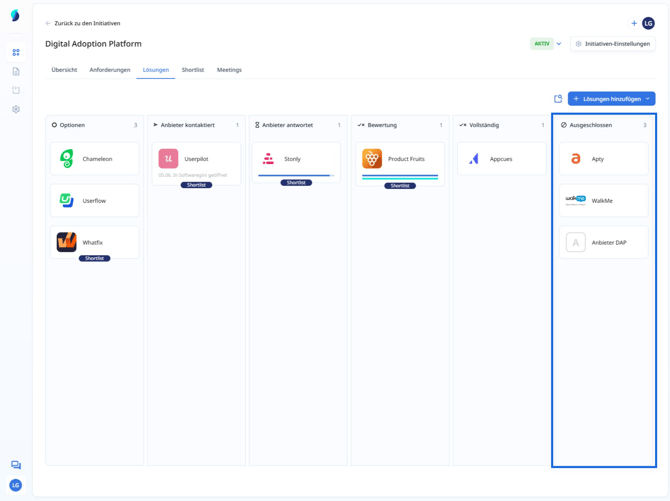
If a solution card is moved to the ‘Disqualified column, the providers concerned lose access and can only see the responses that they have already sent to you.