
Content:
- AI suggestions from the market
- AI suggestions from the application portfolio
- Browse solutions
- Add your own solution
At this point, we have finalized the requirements and now want to gather solutions that match these requirements.
To do this, we navigate to the "Solutions" tab in the initiative's menu.
There we see an overview in Kanban format, which is initially empty or already contains desired solutions that were mentioned when the initiative was created.
We now have four options for adding solutions, which can be done using the "AI suggestions", "Browse solutions" or "+" buttons in the top left:
1. AI suggestions from the market ("AI suggestions")
2. AI suggestions from the application portfolio ("AI suggestions")
3. Search the market ("Browse solutions")
4. Add your own solution ("+")

1. AI suggestions from the market
By selecting this function, the Stackgini market database is checked against the defined requirements and a suitable selection of solutions is provided.
The system validates your requirements based on information from the providers about their products and supports these, where possible, with relevant sources.
Please note that the AI research may take some time. You will receive an email notification as soon as the results are available. In the background, the system analyzes over 50,000 IT solutions and an average of over 50 documents for each IT solution.
Upon clicking the "AI Suggestions" button, you can see the result of the research under the "[Date] Market (X Use Cases)" menu, along with the date of execution and the number of use cases at that time on which the AI based its assessment.
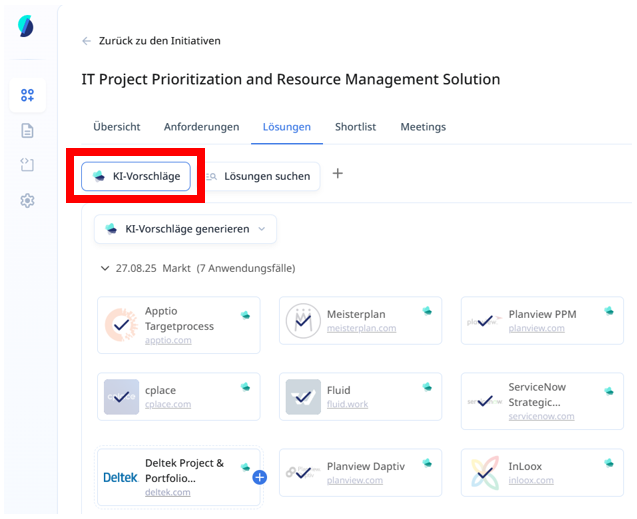
By clicking the small plus sign of a given solution, it is added to the initiative and becomes visible in the "Options" Kanban column.
Based on the color coding of the solutions (top right), you can tell how likely the solution fits your requirements according to the AI assessment (Green = Very likely, Blue = Likely, and so on).
You can read an explanation of the correct interpretation of the AI assessment in this article: How Do I Interpret the AI Suggestions with AI Assessments?
2. AI suggestions from the application portfolio
By clicking on this function, only your own application portfolio is checked against the requirements and matching portfolio solutions are suggested.
Please note that the portfolio must be configured for this function. This can be checked in the main menu under "Portfolio". If you do not see this or if the function is not available, please contact your system administrator or contact us at Stackgini Support.
To view the results from your portfolio, click on "AI Suggestions" and open the dropdown menu with the heading "[Date] Portfolio (X Use Cases)":
You will now see a list of the available solutions from your portfolio, complete with the Stackgini AI assessment.
You can read an explanation of the correct interpretation of the AI assessment in this article: How Do I Interpret the AI Suggestions with AI Assessments?
Add the solutions to the initiative under "Options" by clicking on the blue + sign.
3. Browse solutions
Clicking this function opens the interface for manually searching and adding solutions:

The found solution can also be added here to the collection using the blue + symbol.
4. Add your own solution
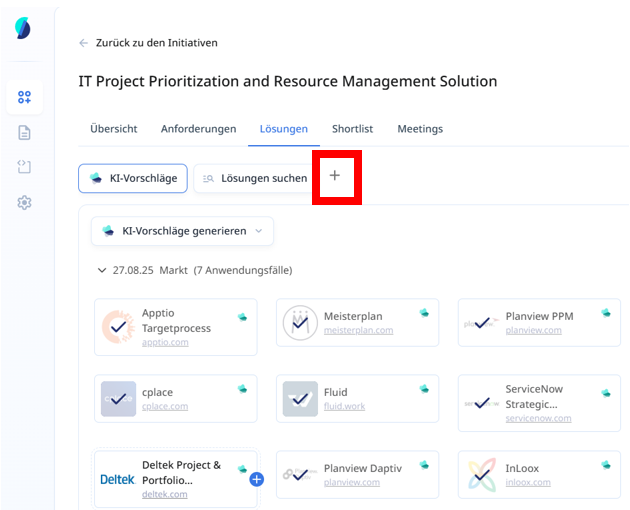
In the case that you want to add any of your own solutions to the initiative, you can do so using the + button next to Browse Solutions.
Important: Please note that for custom solutions that you add, AI evaluations or AI assessments are not available. Please contact Stackgini Support if you would like a new solution to be added to the Stackgini catalog.