
Content:
- What is the Catalog?
- How do I search for a specific software?
- What happens if the software I need is not in the Catalog?
- How do I get recommendations for software I don't know yet?
- How do I ask questions about a specific software?
- What does "Preferred" mean?
- How do I request access to a software?
1. What is the Catalog?
The Catalog is your company's internal software directory — a self-service interface where you can search for existing software at your organization, get AI-powered recommendations, and request access to software you need.
Instead of sending emails to IT or opening support tickets, you can resolve most software questions directly in the Catalog: find out whether a software is available, discover alternatives, and initiate an access request.
2. How do I search for a specific software?
- Open the Catalog
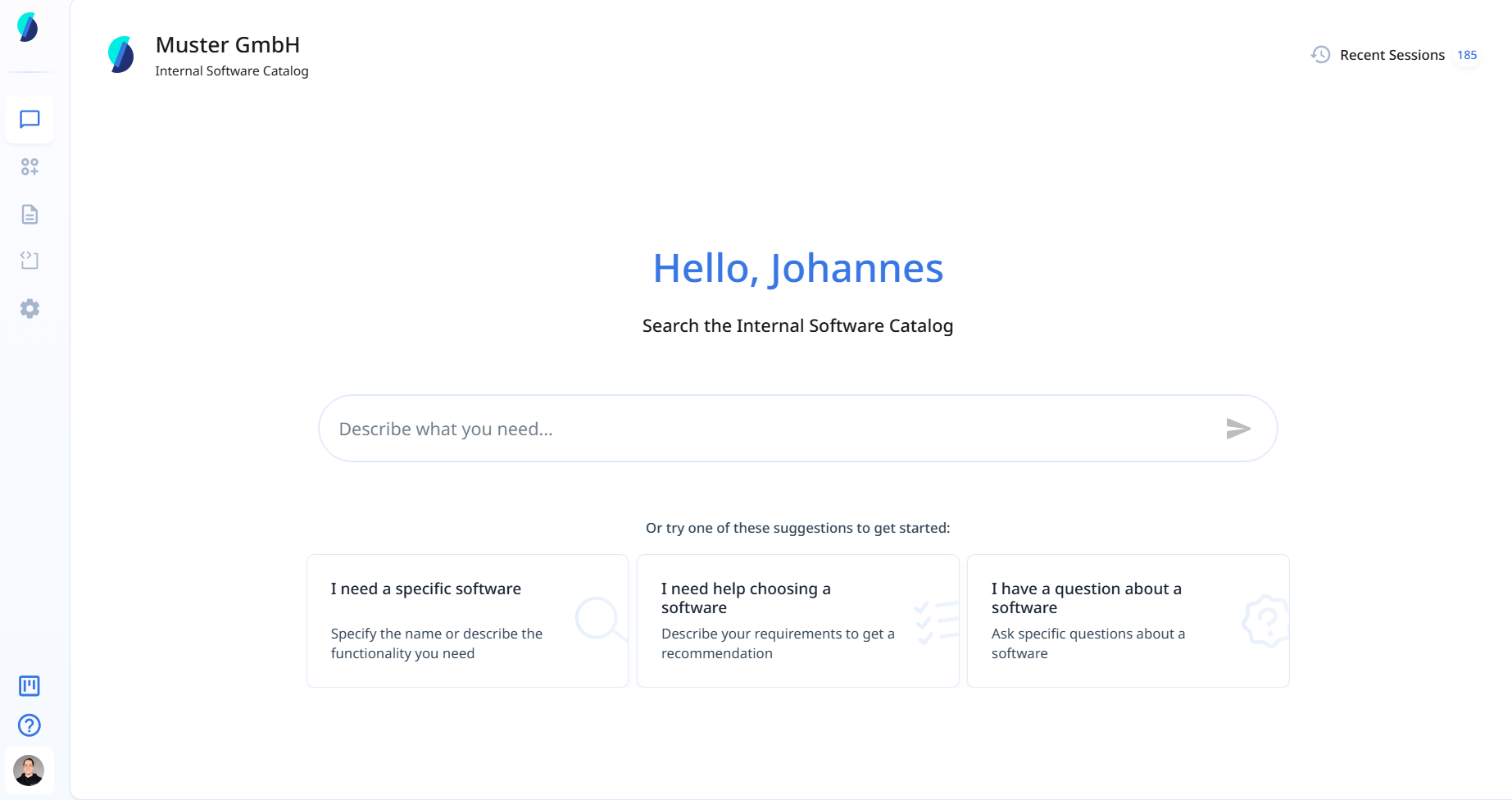
- Type the name of the software or describe what you need (e.g. "I need Miro")
- Press Enter or click the send icon
Stackgini checks your company's internal portfolio in real time and shows you the result.
Tip: You can also click one of the suggestion cards on the start screen to get started quickly:
- I need a specific software
- I need help choosing a software
- I have a question about a software
3. What happens if the software I need is not in the Catalog?
If the tool you are looking for is not available in the internal Catalog, Stackgini recognizes the requested product and informs you that it is not available. You then have the option to view alternatives that offer the same or similar functionality. You can also find out more about the software at any time by clicking on View Details or the software icon:

If Stackgini is unable to clearly identify the requested software product, you can describe what you need the software for — for example, which tasks you want to accomplish with it. Based on that description, Stackgini will show you the available solutions from your company's Catalog.
If none of the suggestions match your requirements, you can use Create new software request to formally submit a request for the tool.
Example: You search for Miro. Stackgini recognizes the product, shows that it is not in the internal Catalog, and suggests Microsoft Whiteboard as an approved alternative — including a short explanation of why it covers the same core use cases.
4. How do I get recommendations for software I don't know yet?
If you are not sure which software is the right one, simply describe your requirements in plain language — for example: "I am looking for a contract management software."
Stackgini returns a shortlist of matching tools from the internal Catalog. You can refine the results by adding more detail to your search (e.g. "I also need E-Signature included") — the recommendations will update accordingly.
Each result includes a short explanation of why the tool was suggested, so you can make an informed decision.
5. How do I ask questions about a specific software?
You can ask product-specific questions directly in the Catalog — for example: "Which integrations does SAP LeanIX offer?"
Stackgini answers based on a combination of your company's internal documentation and external product knowledge covering more than 52,000 products.
6. What does "Preferred" mean?
Some tools in the search results are marked as Preferred. This label indicates that your company has identified this tool as the recommended option for the given use case — for example because it is well-supported, or strategically favored.
When a Preferred option is available, consider starting there before exploring other alternatives.
7. How do I request access to a software?
Once you have found the right tool, click Request Access on the software card. This initiates the access request process — Depending on your company's configuration, this may trigger an approval workflow or send an email request to the relevant department in your organization.