
Content:
1. Overview
Seamlessly create a structured requirements catalog from any type of document — not just Excel tables. With Intelligent Requirements Import, you can also extract requirements from process diagrams, presentations, or software descriptions.
Choose between Precise Mode for accurate tabular imports or Flexible Mode to interpret and refine unstructured content.
2. When is this article relevant?
Use this feature when you want to:
-
Reuse requirements from existing documents (e.g., process diagrams, specifications, or presentations).
-
Import tabular data from Excel or CSV with high accuracy.
-
Interpret and refine unstructured content instead of manually creating requirements.
-
Save time and avoid errors in documentation.
3. Step-by-step instructions
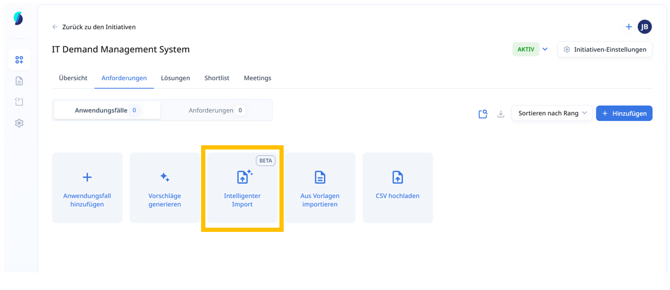
You can find this feature when creating a use case by selecting the option Intelligent Import.
a. Upload or select a file
Drag & drop your file into the upload area, or choose an existing file from your initiative overview via the file browser.
-
Supported formats: PDF, Excel, PowerPoint, Word, CSV, etc.
-
Maximum file size: 10 MB
-
Note: Files may not contain more than 100 requirements. If necessary, split large files into smaller ones or use the CSV import. Example: If the Excel file contains 180 rows, divide it in Excel A with the first 90 rows and Excel B with the last 90 rows.
b. Choose import mode
You can select between two modes:
-
Strict Mode
Recommended for structured and tabular data (e.g., Excel spreadsheets). Requirements are imported as closely as possible to the source format. -
Flexible Mode
Recommended for unstructured documents (e.g., process diagrams, presentations, or descriptive PDFs). Content is interpreted and refined, with optimized titles and descriptions.
c. Add additional instructions
Optionally, you can guide the extraction process with your own instructions.
Examples:
-
“Extract 6 use cases. In the document they are numbered 1, 2, 3, …”
-
“Only extract requirements from section 2 of the document.”
-
“Use the column titled Area as the use case. Use the column titled Requirement as the requirement description and generate appropriate requirement titles as a summary.”
This allows you to tailor the results to your specific needs.
d. Review and adjust extracted requirements
After the file has been processed:
-
Review the automatically detected requirements.
Note: You can, of course, further edit the content after import. -
Deselect any items you do not want to include.
e. Save requirements
After reviewing:
-
Click Save Requirements to confirm your selection.
-
The requirements will be added to the Requirements tab of your initiative, ready for further analysis and comparison.
4. Tips & Best Practices
-
Split large files into smaller documents to improve accuracy and performance.
-
Remove irrelevant content from your document before uploading to avoid unnecessary distractions for the AI.
-
Use Strict Mode when importing clean tabular data (e.g., Excel, CSV).
-
Use Flexible Mode when importing unstructured documents or when you want content to be refined automatically.
-
Provide additional instructions to better guide the import (e.g., focus the AI on certain document sections or explain how you expect the results).
-
Always review the results before saving to ensure relevance and completeness.