
Step 1: Creating an API Key in Stackgini
Open Stackgini and navigate to Organisation Settings -> API Key. Click on New API Key. Set a name and an expiry date.
Important: Save the Stackgini API Key. It will be needed in Step 3.

Important: Save the Stackgini API Key. It will be needed in Step 4.
Step 2: Creating the REST Message
Log into ServiceNow and navigate to System Web Services -> Outbound -> REST Message.
Fill in the settings as follows and enter your <STACKGINI TENANT> value (you can find this in the URL if you use Stackgini - typically, the tenant name is your company name).:
|
Feld |
Value |
|
Name |
Stackgini REST Integration |
|
Application |
Global |
|
Accessible from |
All application scopes |
|
Endpoint |
https://softwaregini.com/api/rest/v1/org/<STACKGINI TENANT>/initiatives |
|
Authentication type |
No Authentication |
Step 3: Adding the HTTP Method
In the REST Message window find the HTTP Methods tab. Click New to add a new HTTP Method.

|
Feld |
Value |
|
Name |
SendDemand |
|
HTTP Method |
POST |
|
Endpoint |
https://softwaregini.com/api/rest/v1/org/<STACKGINI TENANT>/initiatives |
|
Application |
Global |
Step 4: Defining the HTTP Request Header
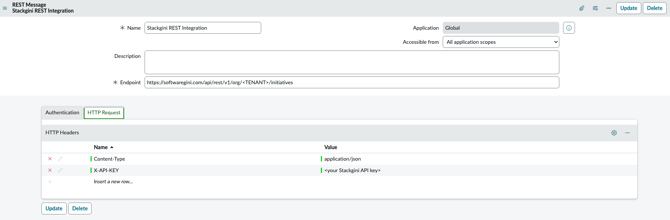
In the REST Message window, you will find the HTTP request. Click New to add a new HTTP header. Configure the fields as shown below. Enter the Stackgini API key from Step 1.
|
Feld |
Wert |
|
Content-Type |
application/json |
|
X-API-Key |
<Stackgini API Key> |
Step 5: Defining the HTTP Query Parameters
Insert the JSON code in the HTTP Request tab and replace <SERVICENOW TENANT> with your ServiceNow tenant (you can find the tenant in your URL — it is the part at the beginning of your URL https://<ServiceNow Tenant>.com):
{
"ticketReference": {
"id": "${task_number}",
"type": "OTHER",
"url": "https://<ServiceNow Tenant>.com/nav_to.do?uri=dmn_demand.do%3Fnumber%3D${task_number}"
},
"title": "${short_description}",
"textFields": [
{
"title": "Description",
"value": "${description}"
}
],
"users": [
{
"email": "${requester_email}",
"firstName": "${requester_firstname}",
"lastName": "${requester_lastname}",
"roles": ["OWNER"]
}
],
"notifyUsers": true
}
Step 6: Testing
To test the successful setup of the integration, navigate to System Definition -> Scripts - Background.
Set the scope to Global and insert the following script:
try {
var rm = new sn_ws.RESTMessageV2('Stackgini REST Integration', 'SendDemand');
rm.setStringParameterNoEscape('task_number', 'DMND0001001');
rm.setStringParameterNoEscape('short_description', 'Test demand for Stackgini');
rm.setStringParameterNoEscape('description', 'Test description');
rm.setStringParameterNoEscape('requester_email', 'user@example.com');
rm.setStringParameterNoEscape('requester_firstname', 'John');
rm.setStringParameterNoEscape('requester_lastname', 'Doe');
var response = rm.execute();
gs.info('HTTP Status: ' + response.getStatusCode());
gs.info('Response Body: ' + response.getBody());
} catch (ex) {
gs.info('Error: ' + ex.message);
}
If the connection is successful, you will receive the following message:
HTTP Status: 200
Response Body: {"id":"#","url":"https://app.softwaregini.com/<TENANT>/#/overview"}
A new initiative should also have been created in Stackgini.
Next Steps
For further embedding of Stackgini into your demand process please reach out to your customer service contact.
Possible integration scenarios for creating a Stackgini initiative out of ServiceNow include for example:
- General creation and submission of a demand
- Moving the demand to the next phase (e.g. Screening)
- Embedding new action fields that trigger a transfer to Stackgini
and many more.