Content:
- Overview: LeanIX integration & creating a connection
- Custom LeanIX queries
- Preferred applications via LeanIX
- Tagging applications in the portfolio
- Connecting multiple LeanIX instances
- Import Business Capability Relationships as Application Knowledge
The LeanIX integration lets you seamlessly synchronize data from your LeanIX factsheets with your portfolio in Stackgini. This allows you to continue managing the IT inventory centrally in SAP LeanIX and make your SAP LeanIX data accessible in Stackgini.
1. Overview: LeanIX integration & establishing connection
With the SAP LeanIX integration you can:
-
Connect multiple LeanIX instances at once.
-
Configure your own individual GraphQL queries.
-
Automatically tag applications via the integration for better discoverability and more transparency within Stackgini.
-
Mark preferred applications directly based on your individual LeanIX logic.
-
Synchronize all factsheet contacts (e.g. application owner) from LeanIX.
- Import Business Capability Relationships as Application Knowledge
The integration currently consists solely of a read-only interface - no data is currently being written back to SAP LeanIX. To import data from LeanIX into your portfolio, first a connection must be set up to a LeanIX instance. To set up the LeanIX integration, go to Organization Settings > Integrations and under + Create LeanIX Integration add a LeanIX interface.
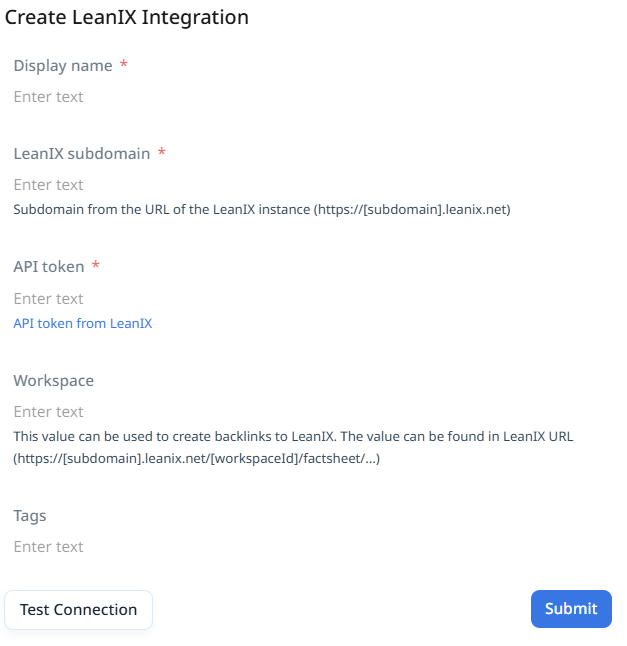
In the “Create LeanIX Integration” form enter the following information:
-
Display Name
A free label under which the connection will be shown in the system. -
LeanIX Subdomain
The subdomain of your LeanIX instance (e.g.exampleinhttps://example.leanix.net). -
API Token
The authentication token, which you can generate in SAP LeanIX (LeanIX API Token). -
Workspace (optional)
The workspace ID allows you to create backlinks from applications in your portfolio back to LeanIX.
You can take this value directly from the LeanIX URL:
https://[subdomain].leanix.net/[workspaceId]/factsheet/... -
Tags
Optionally, you can assign tags to the integration. These tags are automatically added to all applications imported via the integration.
Using the “Test Connection” button checks whether the subdomain and the API token are correct. Clicking “Save” will permanently store the connection.
Make sure the API token is always valid. If this token expires, administrators will be notified via email, or an error message will appear under “Organization Settings” > “Integrations.”
By default, data from LeanIX is updated every 24 hours at 1:00 a.m. (CET) and transferred to Stackgini.
2. Custom LeanIX Queries
With custom queries you control which data from LeanIX is adopted into your portfolio. You can set up multiple queries per LeanIX connection. Each query is based on a GraphQL query that you define in the configuration interface. It does not matter whether the different data queries result in duplicate fact sheets, since our system always assigns a fact sheet ID only once.
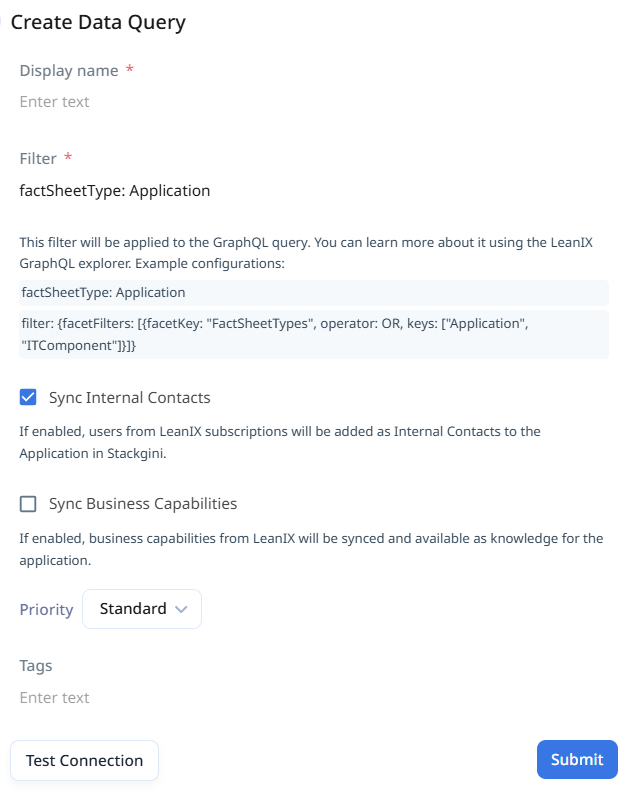
Structure of a Query
A query consists of the following elements, and based on this, the factsheet name and factsheet description are imported from Stackgini:
-
Display Name
Name of the query, freely chosen, e.g.Applications_excl_EndOfLife. -
Filter (GraphQL)
Defines the GraphQL query and thereby which fact sheets from LeanIX are imported. -
Options
‐ Sync Internal Contacts: Takes over all fact-sheet contacts (e.g. application owner) from LeanIX.
‐ Preferred Application: Automatically marks all objects of this query as preferred in the portfolio. -
Tags
Tags that are automatically applied to all applications imported via this query. -
Test Connection
Checks whether the query is valid.
Note: GraphQL queries are best tested and validated directly in SAP LeanIX under Administration > Developer Tools > GraphiQL before using them in the integration. In addition, you can easily generate GraphiQL code using the filters in your inventory by selecting “Export actions” and then choosing the “Open in GraphiQL” option.
Now copy the “Variables” block in the editor and paste it into an AI tool of your choice along with the following prompt to transform the syntax into the format expected by Stackgini:
Convert the following LeanIX GraphQL filter from JSON syntax to LeanIX inline filter syntax. Rules:
Remove quotes from all keys (filter:, facetFilters:, facetKey:, operator:, etc.)
Remove quotes from enum values (OR, NOR, AND, asc, desc, APPROVED, etc.)
Keep quotes on string values (facet key names like "Application", IDs, labels)
Simplify dateFilter to {type: TODAY} unless a specific date range is semantically meaningful — in that case use {type: TODAY} anyway unless the user explicitly asks to preserve the range
Remove the sortings block
Remove the responseOptions block
Preserve all facetFilters entries and their order
Output only the converted query, no explanation.
Examples
Example 1: Applications_excl_EndOfLife
Goal: Import all applications except those in the lifecycle stage “End of Life”.
GraphQL filter:
{
facetFilters: [
{facetKey: "FactSheetTypes", operator: OR, keys: ["Application"]},
{facetKey: "lifecycle", operator: OR, keys: ["plan","phaseIn","active","phaseOut"]}
],
dateFilter: {type: TODAY}
}
- Options: Sync Internal Contacts disabled, Preferred Application disabled
-
Tags:
Application
Example 2: IT-Components_Platform
Goal: Import IT components with the category Platform and mark those as preferred.
GraphQL filter:
{
facetFilters: [
{facetKey: "FactSheetTypes", operator: OR, keys: ["ITComponent"]},
{facetKey: "category", operator: OR, keys: ["platform"]}
]
}
-
Options: Preferred Application enabled
-
Tags:
Platform
3. Preferred Applications via LeanIX
Applications can be marked as Preferred to highlight them more prominently in the user interface.
-
The marking can also be done directly via SAP LeanIX (see above).
-
Applications that are set as preferred via the integration cannot be manually reset back to “Standard”.
-
Preferred applications appear more prominently in search and AI suggestions within initiatives.
.png?width=670&height=431&name=image%20(8).png)
4. Tagging Applications in the Portfolio
With the LeanIX integration you can tag applications in the portfolio. Tags make it easier to filter, group, and communicate about specific subsets of the portfolio within Stackgini.
Automatic tagging:
‐ Tags can be stored in the instance or query configuration.
‐ These tags are automatically added to all applications imported by that specific query.
‐ Automatic tags cannot be manually altered and are updated on each synchronization.
5. Connecting Multiple LeanIX Instances
You can connect one or more LeanIX instances to your portfolio.
-
Each instance has its own configuration.
-
Instances can be added or removed at any time.
6. Import Business Capability Relationships as Application Knowledge
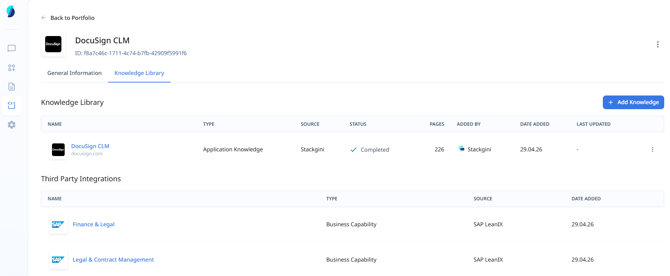
The business capability relationships linked to a fact sheet can be imported as application knowledge into Stackgini. To do this, you must have checked the “Synchronize business capabilities” checkbox for every data query that includes the relevant fact sheet.
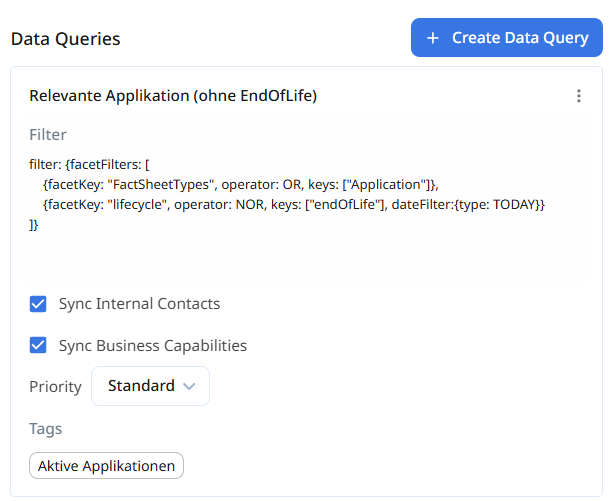
The business capability name and description are added as application knowledge. In doing so, all business capability levels that are directly or indirectly linked to the fact sheet are included. This context is then made available to the Stackgini AI as application knowledge and is taken into account during the AI’s evaluations.