
Content:
- Overview and status management of the internal application portfolio
- Knowledge management
- Application Detail View
- Preferred Portfolio Applications
1. Overview and status management of the internal application portfolio
The table view displays all internal portfolio applications, including their name, status, type, linked knowledge sources, and available actions. This is where users manage the knowledge that is used for the AI-powered evaluation of portfolio applications in Stackgini.
What is an internal portfolio application and how does it differ from applications from the Stackgini catalog (market)?
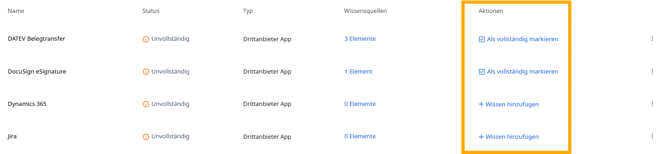
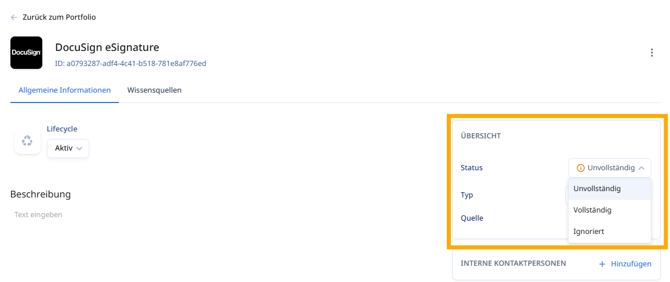
You can mark applications as "complete" if all relevant information is available, or as "ignored" if this application should not be findable in the portfolio search or in suggestions.
The "Ignored" status designates applications that are recorded in the internal portfolio but should no longer be actively considered. Ignored applications are not findable in the portfolio search and are not used by AI suggestions from the portfolio.
Above the table, quick access options are available to filter applications by their knowledge status – e.g., "Incomplete", "Complete", "Automatically completed" (by AI), or "Ignored".
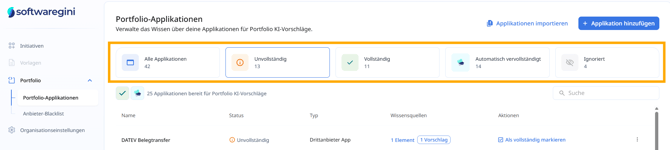
The status of an application can be set or changed in several places - for example, in the table view:
Or within the detail view of an application:
As soon as an application has sufficient information – for example, through linked Stackgini knowledge or your own uploaded files – it is marked either automatically as "automatically completed" or manually by the user as "complete".
Only applications with the status "automatically completed" or "complete" are available for AI analysis.
2. Knowledge management
a. Knowledge sources
i. Connect Stackgini knowledge and market data with applications
Linking external knowledge sources, which Stackgini maintains for you on third-party apps, offers several advantages:
-
The application is enriched with validated, external content (e.g., functional description, vendor profile).
-
This data is available out-of-the-box for AI-based evaluations.
-
The manual maintenance effort is significantly reduced.
This link can be adjusted or removed at any time.
ii. Upload your custom documents
Your own files – e.g., internal configuration descriptions, product documentation, or manuals – can be uploaded and linked with an application. After upload, these are analyzed by our AI and used as a knowledge context - so here you can define what the AI needs to know about this application.
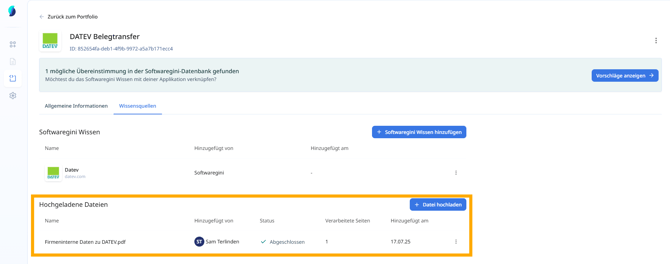
b. AI-based data enrichment
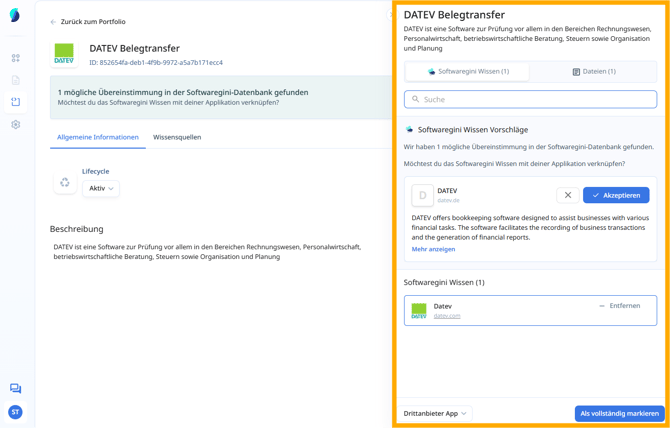
Stackgini automatically provides suggestions for relevant external knowledge sources based on your recorded application data and by matching it against the Stackgini Market Catalog. The system distinguishes between two cases:
- Automated Linking In cases of very high AI confidence, the application is directly linked with our market data and enriched. These automated links are given the status "Automatically completed" and the note "Added by Stackgini".
- Suggestions that require user confirmation In cases of lower AI confidence, a suggestion is made that must be manually confirmed by users. The knowledge source is linked only after confirmation.
As soon as Stackgini detects a potential match between an application and an entry in the Stackgini Market Catalog, a suitable knowledge suggestion is displayed. This matching is based on the following information you have entered:
-
Application names
-
Any application description text
3. Application Detail View
Each application has its own detail view.
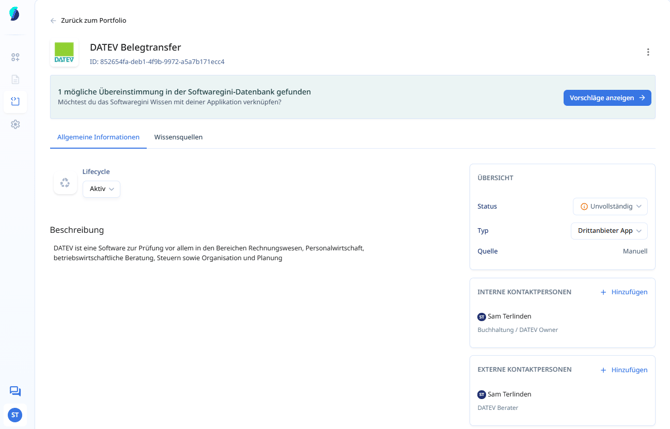
Internal portfolio applications have the following attributes:
ID
- Definition: Unique, system-generated identifier of the application within Stackgini.
Lifecycle
- Definition: In Stackgini, a lifecycle (Lebenszyklus) refers to the timeline or status of an IT asset. The lifecycle indicates which phase of use or planning an element is in.
- Values:
- Plan - The application is in the planning phase and yet to be introduced.
-
Phase In - The application is being introduced.
-
Active – The application is currently in use.
-
Phase Out – The application is being phased out.
- End of Life - The provider no longer supports the application, and it's officially obsolete.
-
Inactive - The application is no longer supported or used.
Status
- Definition: Indicates whether the application is ready for AI evaluations.
- Values:
-
Incomplete – Relevant information or knowledge sources are missing.
-
Complete – The user has checked the information and data in the application and marked it as "complete".
-
Automatically Completed – The AI has checked the information and data in the application and marked it as "automatically completed".
-
Ignored - The application is not relevant for further use.
-
Typ
-
Definition: Classification of the application according to its origin.
-
Values:
-
Third-Party App – Externally procured standard software.
-
Custom-Built – In-house developments or internal tools.
-
Source
- Definition: Origin of the application data (Set automaticallyby the system).
- Values:
-
Manual – The application was created manually.
-
CSV – Data comes from a CSV import, integration, or similar.
- or any other third-party tool (e.g. LeanIX)
-
Description
- Definition: Free text field for the description of the application.
Knowledge sources
- Definition: Linked content for the application that an AI uses as a basis.
- Subtypes:
- Stackgini Knowledge - Validated knowledge about applications from the Stackgini database.
- Uploaded files - Your own documents, e.g., PDFs, manuals, contracts.
Internal contacts
- Definition: Employees who are responsible for the application within the company.
External contacts
- Definition: Contact on the provider's side.
4. Preferred Portfolio Applications
You can set specific portfolio applications as Preferred to make them stand out.
-
How to set a preferred application:
Go to the application’s detail page and mark it as Preferred. This can be managed manually at any time. -
What happens when an application is preferred:
-
It will appear in a more prominent position in the recommendations UI.
-
AI suggestion results are sorted by both relevance and preferred status.
-