
Portfolio Optimization shows you where applications in your portfolio overlap. Stackgini groups comparable applications into clusters, compares their capabilities and gives a recommendation for each application. From the costs you have stored, Stackgini calculates how much you can save.
Contents:
- What is Portfolio Optimization?
- How Portfolio Optimization works
- The cluster overview
- A cluster in detail
- Adjust recommendations and complete clusters
1. What is Portfolio Optimization?
Many organizations use several tools for the same job, for example a dozen tools for email marketing. Portfolio Optimization finds these overlaps and makes the savings potential visible.
Unlike a comparison by category, Stackgini looks at what each application can actually do. Two tools from the same category don't automatically replace each other.
To do this, Stackgini builds clusters of comparable applications. In each cluster, Stackgini compares the functional and non-functional capabilities of all applications. Each application gets one of four recommendations:
| Recommendation | Meaning |
|---|---|
| Keep | The application covers the most in the cluster or supports a particularly large number of processes. |
| Retire candidate | Other applications in the cluster already cover its capabilities. It is redundant. |
| Evaluate | The application also covers areas outside the cluster. The application owners check whether these capabilities are used. |
| Consolidate instances | The same software runs more than once, for example Salesforce for the team in China and for the team in Germany. The instances can be merged. |
You'll find the feature in the sidebar under Portfolio Optimization.
2. How Portfolio Optimization works
We run Portfolio Optimization together with you. Our Customer Success team supports you from the scope to the first results.
Info: Our Customer Success team starts the analysis together with you. You see the clusters in the app as soon as the analysis is complete.
To use Portfolio Optimization, you need the permission "Manage Portfolio Optimization". Admins grant it under Organization Settings › Roles & Permissions to a role or through a user group, see Role and permission management.
Step 1: Prepare your data
Portfolio Optimization uses the Knowledge Library linked to your portfolio applications. Its content comes into Stackgini through the SAP LeanIX integration, as Application Knowledge from Stackgini or as files you upload yourself, for example. The more complete the Knowledge Library, the more reliable the recommendations.
Check three things before you start:
- Knowledge Library: Only applications with the status Completed or Auto-Completed can be compared. Our article Manage your internal application portfolio explains how to add knowledge.
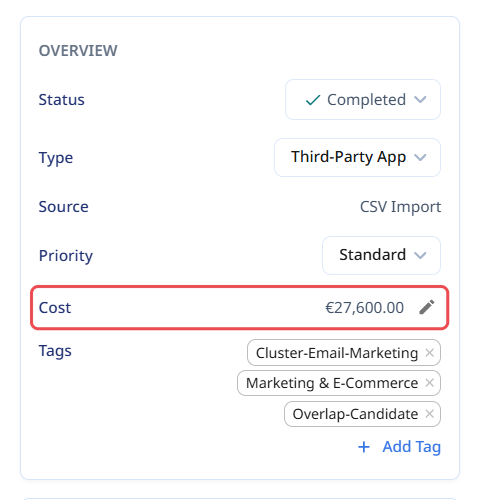
- Costs: Stackgini calculates the potential savings from the costs per application. Applications without stored costs don't count. Open the application under Portfolio › Applications Inventory and click + Add cost in the Overview card. If an amount is already stored, change it with the pencil next to it.
- Lifecycle and priority: Stackgini takes the lifecycle (for example End of Life) and the priority (Preferred, Blacklisted) into account in a cluster's summary.
Step 2: Set the scope with tags (optional)
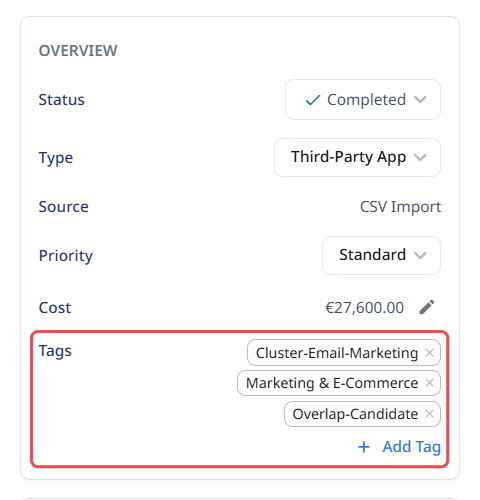
Narrow the scope with tags: tag the applications where you expect overlaps and hope for savings. These can be specific Business Capabilities, regions or legal entities, for example.
You add tags in the application under Overview › + Add Tag. With the SAP LeanIX integration, tags can also be set automatically, see Set up SAP LeanIX integration.
Step 3: Analysis by Stackgini
Our Customer Success team starts the analysis together with you, for the tagged applications or for your portfolio. Stackgini builds clusters from them and analyzes each application in them. You can also create clusters yourself, see section 5.
Step 4: Review the results and decide
The finished clusters appear in the To review tab. You review the recommendations, for example with the application owners, adjust them if needed and mark the cluster as reviewed.
3. The cluster overview
Click Portfolio Optimization in the sidebar. The overview shows all clusters and their savings potential.
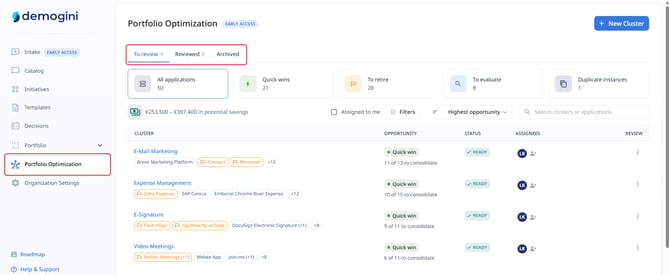
- Tabs: To review, Reviewed and Archived. The number next to a tab shows how many clusters it holds.
- Tiles: They show at a glance in which clusters there are quick wins, retire candidates, applications to evaluate or duplicate instances. Each number counts applications. Click a tile to see only the matching clusters: All applications, Quick wins, To retire, To evaluate and Duplicate instances.
- Savings: Below the tiles you see the range of potential savings, for example "€253,500 – €397,400 in potential savings". The range comes from the stored costs. The lower bound only counts retire candidates, that is applications that can really be retired. Applications to evaluate extend the range upwards. Applications to keep don't count.

The table has one row per cluster:
- Cluster: name and the applications it contains. Retire candidates are marked orange with a flag. "(+1)" after a name means that the software runs more than once.
- Opportunity: the cluster's rating, for example Quick win for a low-effort retirement. Below it you see how many applications can be consolidated, for example "11 of 13 to consolidate".
- Status: Ready once the analysis is complete.
- Assignees: the people working on the cluster.
Above the table you narrow the list: Assigned to me, Filters (by assignee or application tags), the sort order (for example Highest opportunity) and the search. In the search field, you can search by the names of clusters or of applications.
4. A cluster in detail
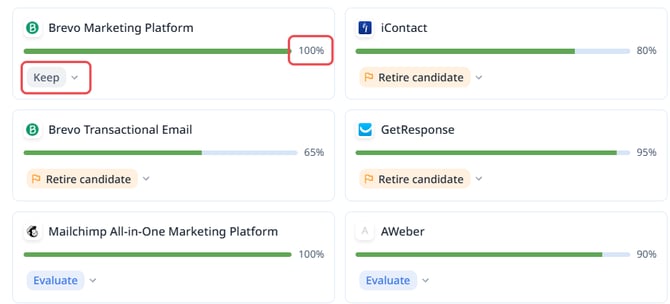
Click a cluster's name. Below the name it says "Capability comparison": Stackgini compares the applications in the cluster by their capabilities. Next to it you see the status, below it the savings range and one card per application.
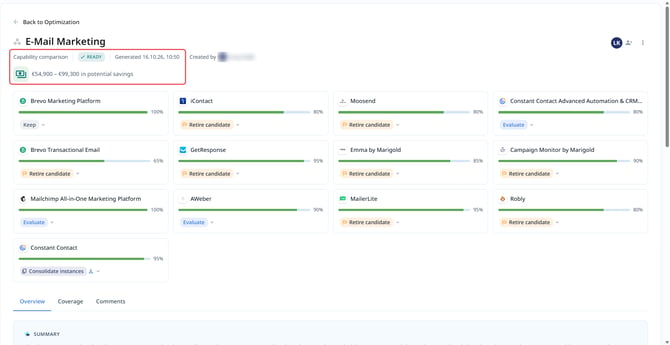
Each card shows what percentage of the cluster's capabilities the application covers, and its recommendation.
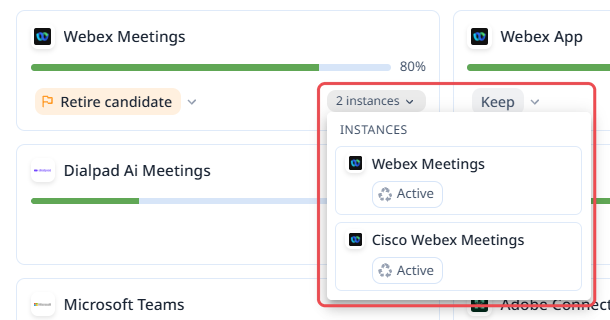
If the same application appears more than once in your Applications Inventory, Stackgini groups the entries together. Stackgini then treats them as instances of the same system and shows 2 instances on the card, for example. Click it to list the individual applications (instances) with their lifecycle.
Below the cards you find three tabs.
Overview
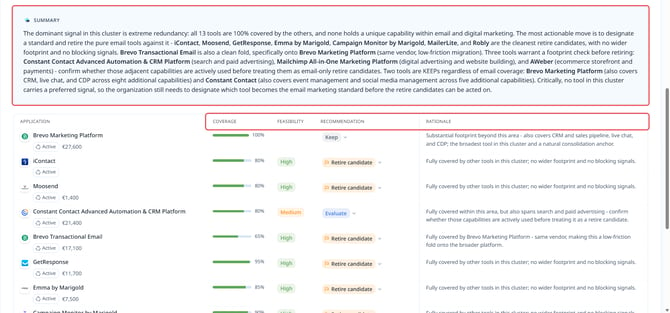
The Summary describes the cluster in a few sentences: which applications can be retired right away, which you should check and which stay. The table below shows for each application:
- Application: name, lifecycle, cost and Business Capabilities
- Coverage: share of the cluster's capabilities that the application covers
- Feasibility: how well the recommendation can likely be put into practice (High, Medium, Low), empty for applications to keep. For example, a social media marketing tool is easier to retire than an entire ERP system.
- Recommendation and Rationale in one sentence
Coverage
The matrix compares the cluster's capabilities in the rows with the applications in the columns in detail. For each capability, Stackgini checks how fully the application covers it, based on the Knowledge Library linked to your applications. A green dot stands for Full coverage, a half orange one for Partial coverage and an empty circle for Not covered.
At the top you see what percentage of the capabilities is fully covered and whether there are gaps. Focus on differences hides the rows where all applications score the same.
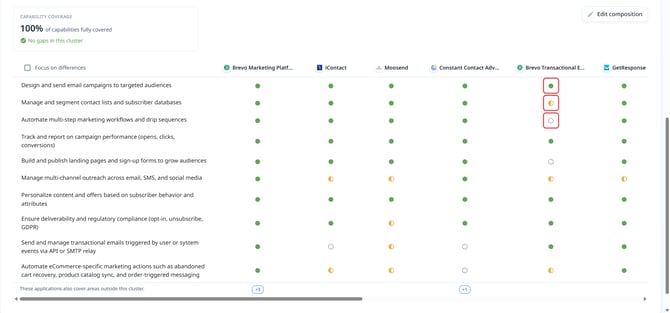
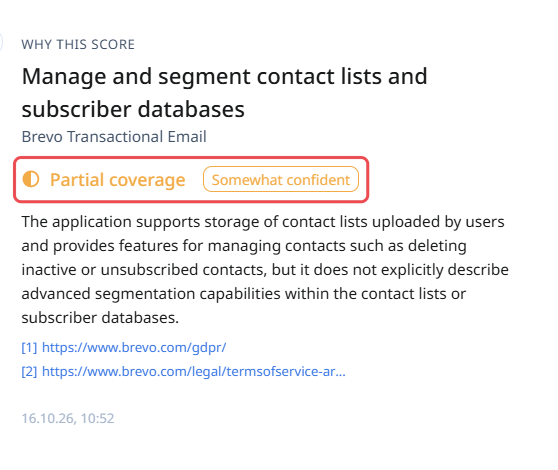
Click a symbol to see how the score came about. The Why this score panel shows the coverage, a rationale and the sources. It also shows how confident the AI agent is in its assessment: Confident, Somewhat confident or Uncertain.
Edit composition
If a cluster doesn't fit yet, change its composition directly in the Coverage tab:
- Click Edit composition at the top right.
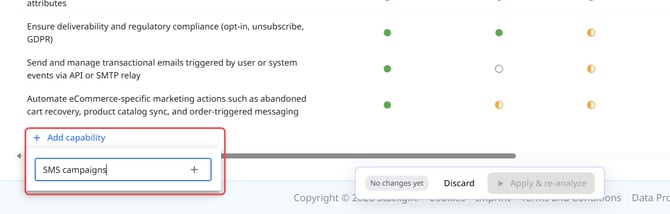
- At the bottom of the matrix, click Add capability. Enter another capability in the New capability free-text field that Stackgini should check for the applications.
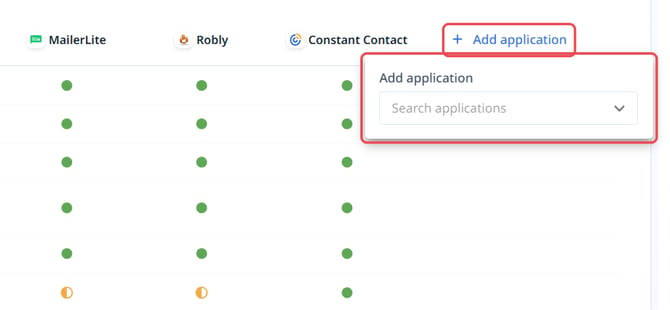
- To the right of the last column, click Add application and pick another application from your portfolio under Search applications.
- Click Apply & re-analyze in the bar at the bottom and confirm. Discard cancels.


Stackgini then analyzes the cluster again. This can take a few minutes.
Comments
This is where you discuss the cluster with your team. Use @ to mention a colleague.
5. Adjust recommendations and complete clusters
Override the AI assessment
The recommendation is an AI assessment with a rationale and sources. The decision is your team's. If your team knows reasons against it, override it. You can do this on an application's card or in the table in the Overview tab:
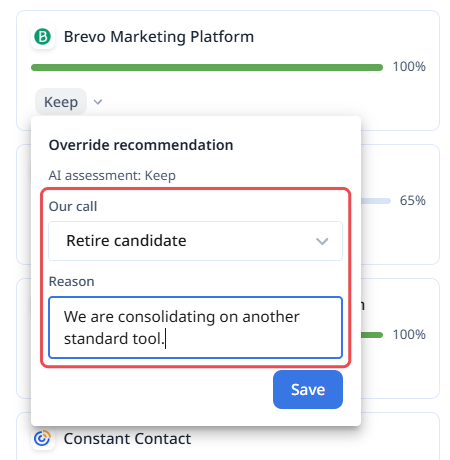
- Click the arrow next to the recommendation, for example next to Retire candidate. The Override recommendation window opens. At the top you see the original AI assessment.
- Under Our call, choose your team's recommendation, for example Keep.
- Under Reason, write why you decide differently, for example "Contract runs until 2027".
- Click Save.
The application is then marked "Overridden by your team". The savings range adjusts: if an application becomes a retire candidate, the range goes up. If you set it to Keep, it goes down.
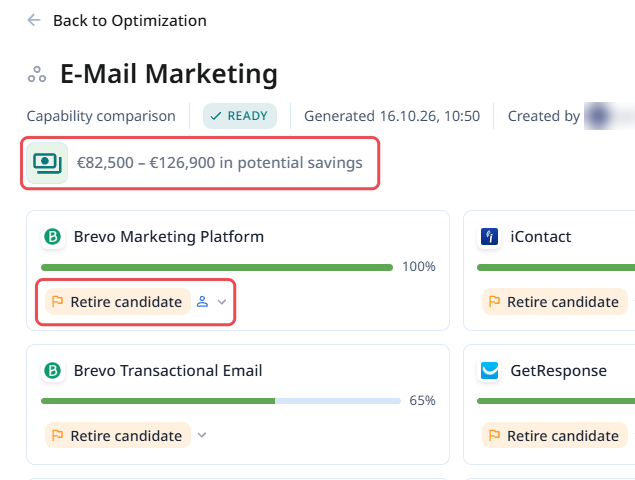
To go back to the AI assessment, open the window again and click Clear override.
Assign colleagues
At the top right of the cluster you see who is assigned. Click the person icon with the plus and pick the people relevant for the cluster, for example the application owners. You'll find the same icon in the Assignees column of the overview.

Assigned to me shows only the clusters you are assigned to in the overview.
Comment together
In the Comments tab you work on the cluster with your team. Write your comment and use @ to mention a colleague.
Mark a cluster as reviewed
When you're done with a cluster, click ⋮ at the top right and then Mark as reviewed. The cluster leaves To review and now sits in the Reviewed tab. Stackgini recalculates tiles and savings per tab.
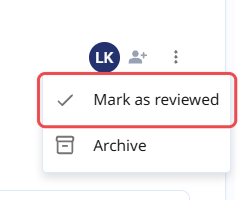
If you need to reopen a cluster, click ⋮ and then Mark as unreviewed. Use Archive for clusters you don't pursue further.
Create your own clusters
You can also create clusters yourself, for example for applications where you suspect an overlap:
- Click + New Cluster in the overview.
- Enter a Name, for example "Backup tools".
- Under Applications, choose at least two applications from your portfolio.
- Click Create Cluster. Stackgini analyzes the new cluster.
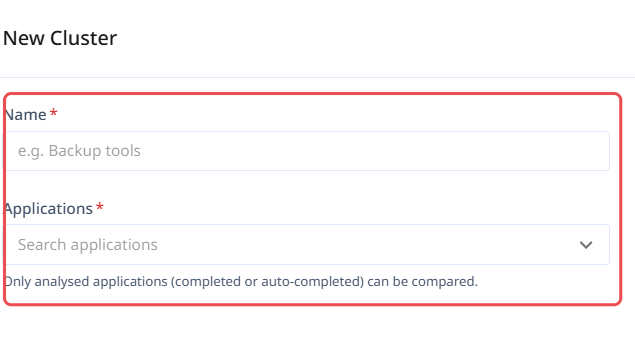
Important: Only analyzed applications with the status Completed or Auto-Completed can be compared. If an application is missing from the list, complete its Knowledge Library in the portfolio first.