
Content:
1. Overview
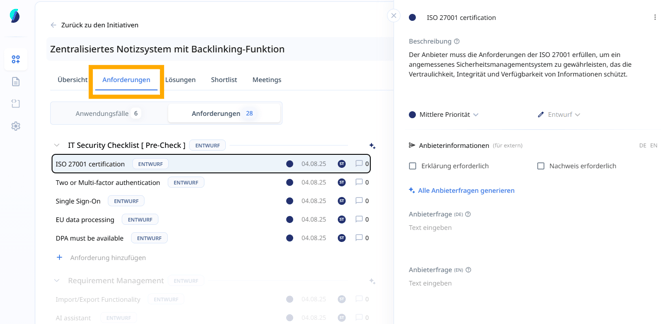
In Stackgini, you can record requirements directly within an initiative. This function helps you to document specific requirements in a structured manner - for example, for later comparisons or evaluations of solutions and providers and in collaboration with the business. The requirements are managed in the ‘Requirements’ tab within the initiative.
2. When is this article relevant?
This article is relevant if you:
- have created a new initiative and now want to add requirements
- want to generate suggestions for suitable requirements
- want to coordinate and visualise requirements together in a team or with stakeholders
3. Step-by-step instruction
Requirements are always collected within use cases.
Use cases thus form the logical cluster under which requirements are bundled.
We therefore start with the creation of use cases and then fill them with requirements.
Firstly, navigate to your desired initiative.
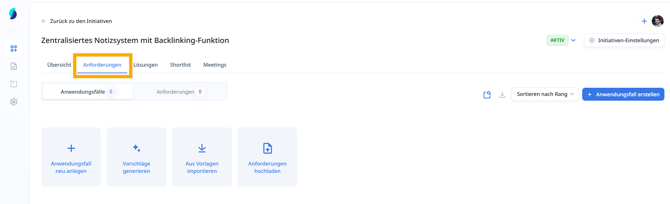
Select the ‘Requirements’ tab in the top navigation menu:
a. Add new use cases
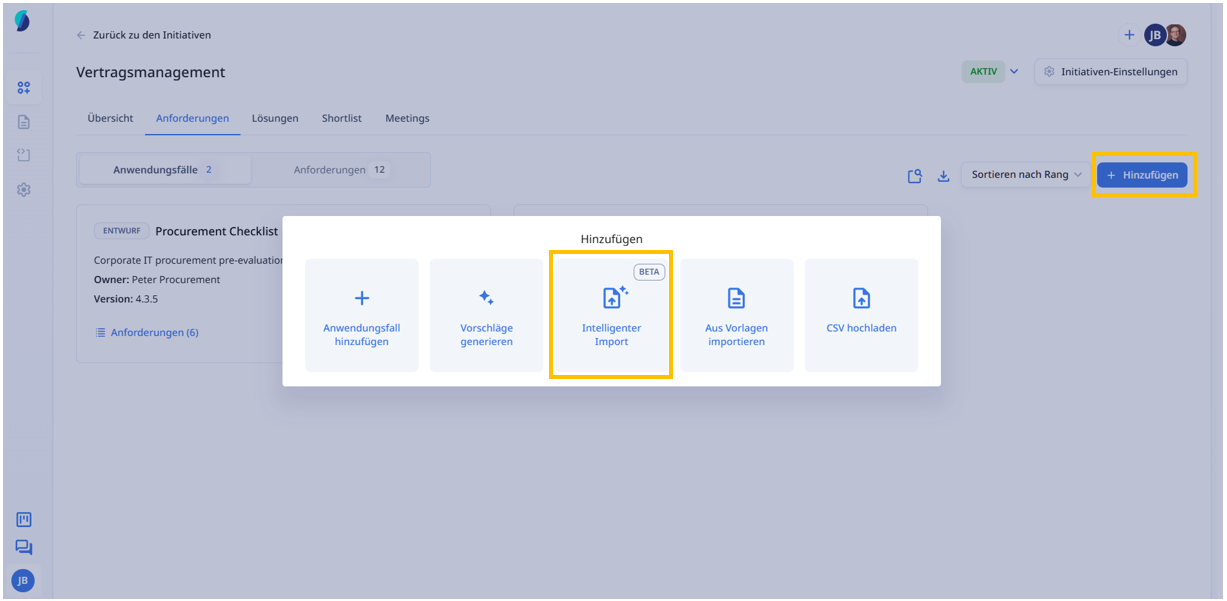
Click on the ‘Create use case’ button.
An input screen with four options opens. If your initiative does not yet contain an initiative, you will find the four options under ‘Requirements’.
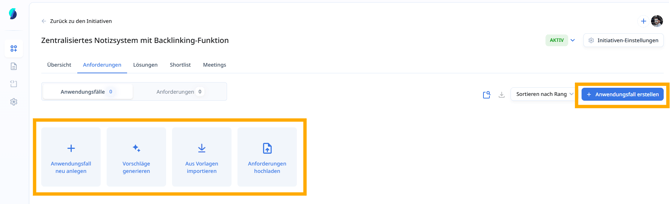
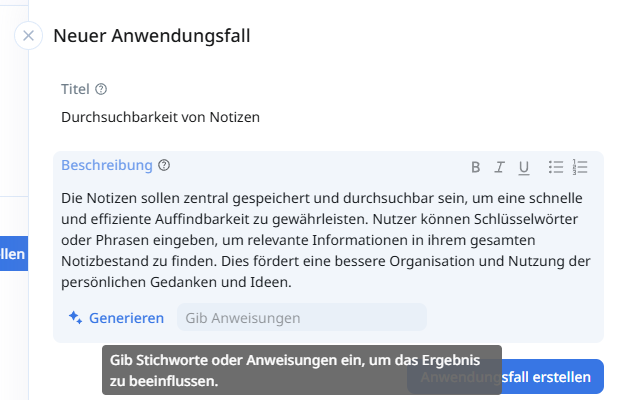
i. Manually create: Opens the dialogue for manually entering a use case. Click on ‘Create use case’ to add it directly to your list. A use case always has a title and a description. Always set a concise title that is valid for all requirements within the use case. For example:
Use case: ‘Searchability of notes’ with the requirements
-
- Tagging of notes
- Categorisability
- ...
Use cases should always contain a description. You can have these conveniently created with AI support, customise them manually or use the "Give instructions" function to influence the AI's auto-completion.
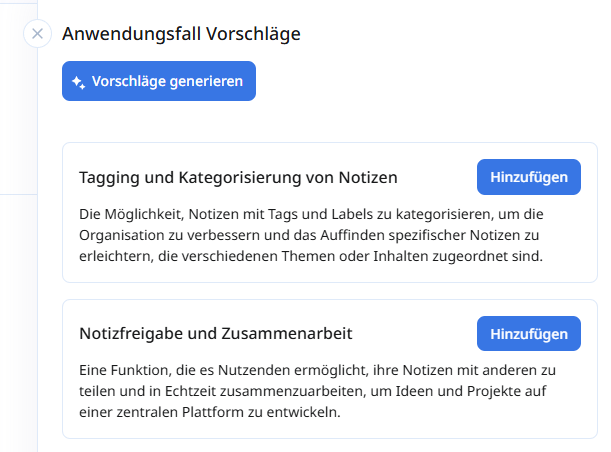
ii. Generate suggestions: Generates AI-supported suggestions for use cases based on the information stored under Overview and supplemented by the topic-specific Stackgini market knowledge on the typical questions and use cases in your initiative.
iii. "Import from template": Existing templates, i.e. recurring collections of requests, can be imported with a click.
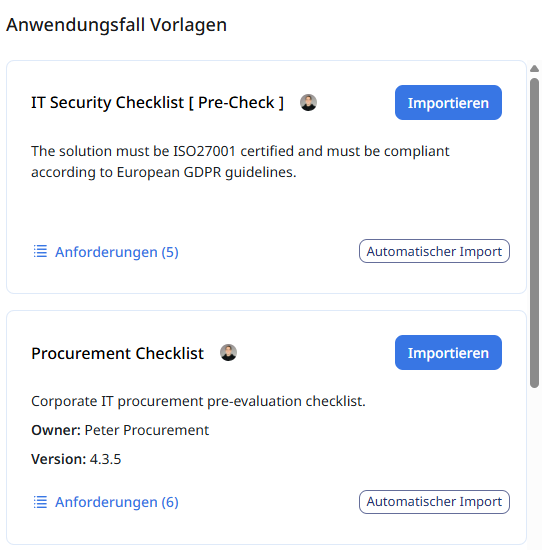
Here you will find a detailed article on the use of templates:
How to add a template to an initiative
iv. Intelligent Import:
Generate a structured requirements catalog seamlessly from any document — not just Excel tables. Try to extract requirements from process charts, presentations, or even software descriptions. Use Strict mode for precise tabular data to be imported or Flexible mode to refine and interpret your unstructured content.
v. Upload csv:
Upload existing collections of requirements conveniently via .CSV import.
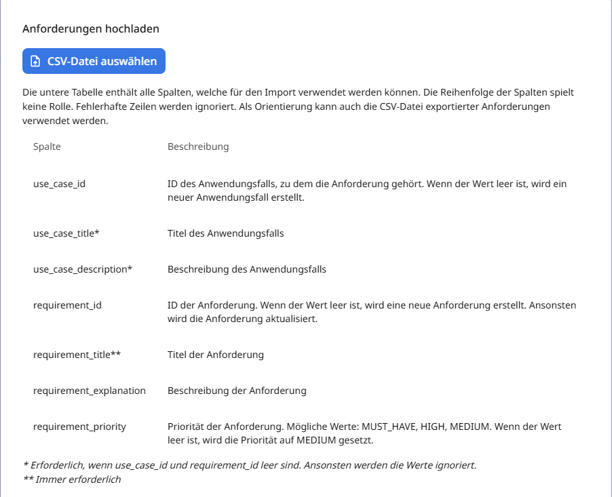
To upload the .csv file, please also read the article:
Upload requirements from csv file
b. Add requirements to use cases
To enter requirements under the use cases, first navigate to the ‘Requirements’ tab. Here you will initially see an empty list of use cases, unless you have used templates or .CSV uploads.
What are requirements?
In Stackgini, requirements describe what a solution must do - functionally or non-functionally.
Read more about this in the article:
How do I formulate requirements correctly?
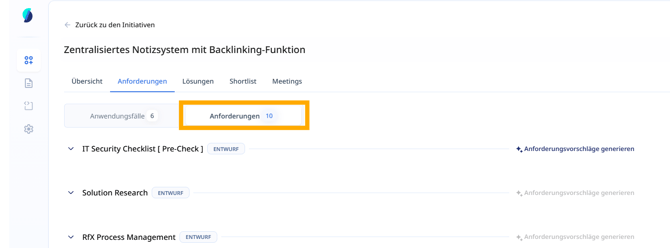
You can enter requirements manually or use the Stackgini AI for support and generate customisable suggestions.
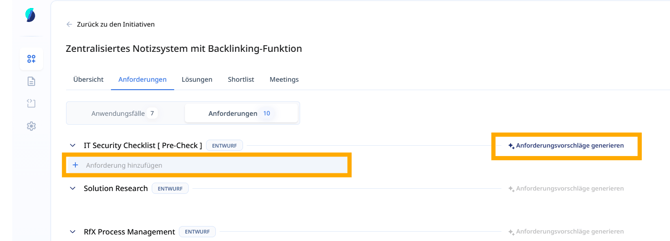
i. Manual creation
As soon as you have entered the name of the requirement, it can be filled with content. Here you can use the Stackgini AI to simplify the generation of a requirement description. You can control the AI by adding your own instructions for the generation.

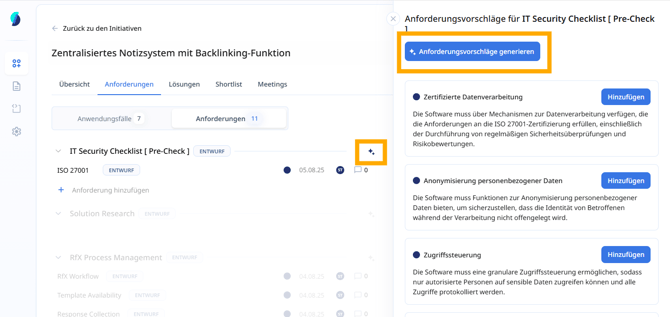
ii. AI suggestions
As with use cases, you can also generate AI suggestions for requirements with a click, which can be customised in the same way as manual entries beforehand.
4. Tips & Best Practices
- Formulate concisely: Keep titles short and understandable; use the description for details. You are also welcome to use our help articles on this topic:
How do I formulate requirements correctly? - Talk to stakeholders, work in a team and develop the requirements together with the people involved: use the comment function or share the initiative to get feedback from the requester.
